How to Mockup Vinyl Stickers for Etsy Without Owning a Single Sticker
The traditional way to get a real sticker product photo is exactly what it sounds like: order a print run, wait for it to arrive, stick a sample on a laptop or a water bottle, set up some light, and take the photo yourself. That's a reasonable process once you're already selling — but it's a slow, expensive way to find out whether a design is even worth printing in the first place.
You don't need any of that to get a usable listing photo. If your design exists as a digital file, that's the only input a mockup generator needs.
What you actually need
- Your sticker artwork as a JPG or PNG (transparent background gives the cleanest die-cut edge)
- A free PosterMock AI account, or none at all — guests get free daily generations
- About 20–30 seconds per mockup
No die-cutter, no vinyl, no camera, no lighting setup — the entire "photograph a physical product" step is replaced by an AI model that generates the surface, the lighting, and the shadows around your design directly.
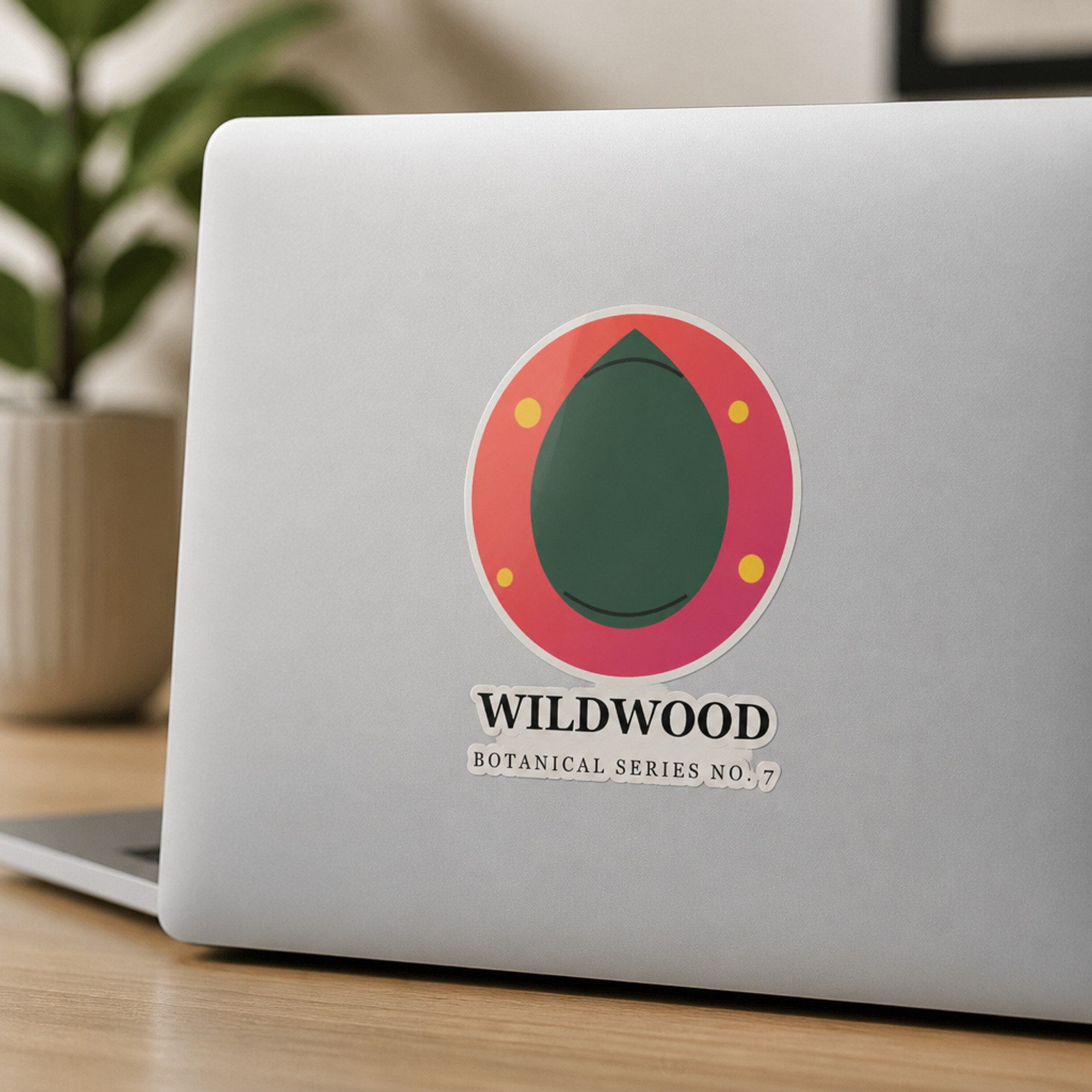
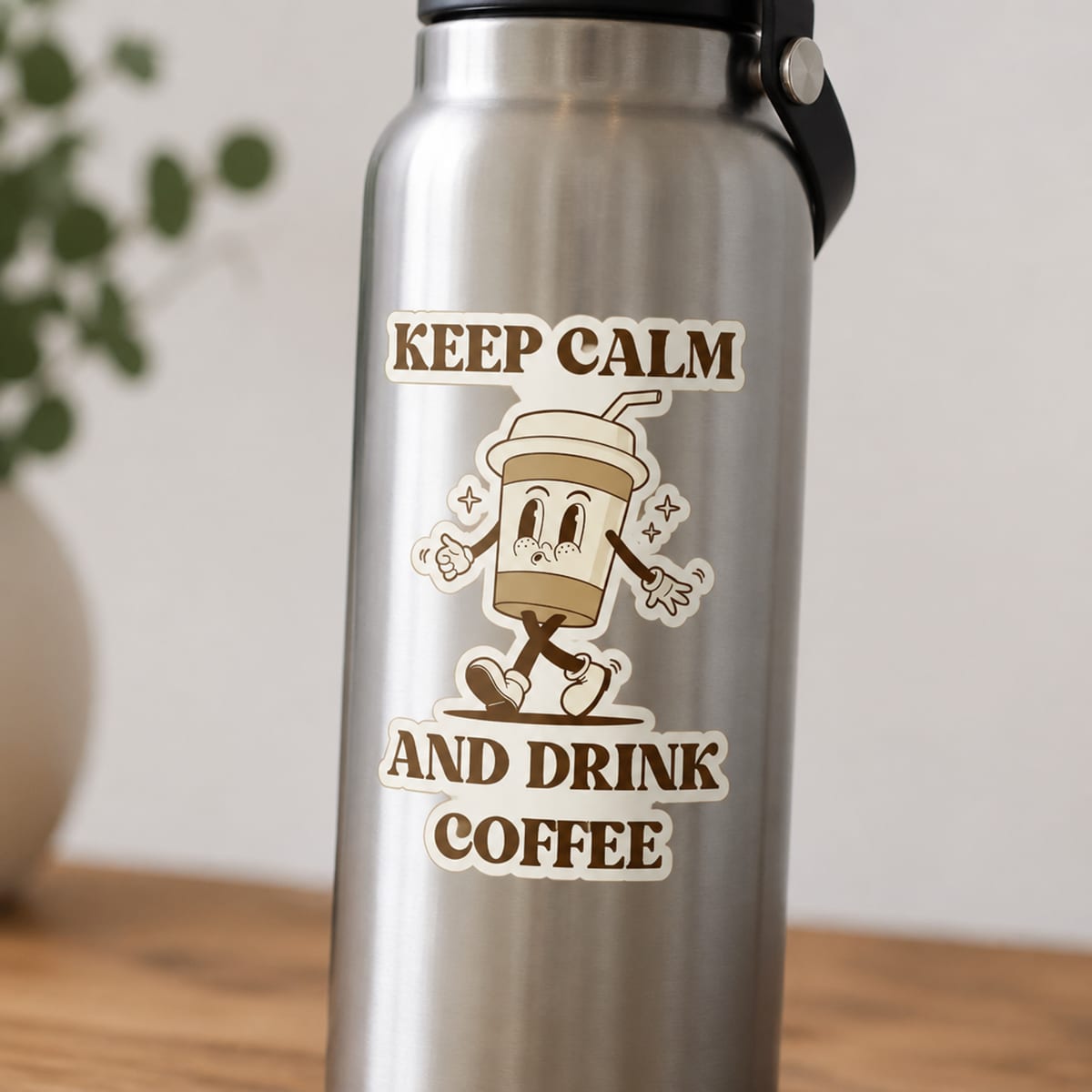
Both generated from the same flat design file — no physical sticker involved.
The process
Export your design
A transparent PNG from Procreate, Illustrator, or Photoshop works best; a JPG on a plain background works too. This is the same file you'd send to a printer.
Upload it to the sticker tool
No account required to try it — drag, click, or paste the file in.
Pick a surface and finish
Flat Lay, Laptop, Water Bottle, Notebook, or a full Sticker Sheet, in Glossy, Matte, or Holographic — whichever combination matches your actual product.
Download and list
Your finished photo arrives at 2000×2000, 300 DPI — ready to upload directly to an Etsy listing.
Why this matters before you print: generating a mockup first means you can test how a design reads as a product photo — surface, lighting, scale — before spending money on a print run you're not sure will sell. If the mockup doesn't look compelling, the design probably needs work regardless of print quality.
How this differs from a template pack
Template-based mockup packs (the kind sold on Etsy and Creative Market) work by pasting your flat design onto a fixed stock photo using a Smart Object. They're fast, but every buyer of that same template pack produces the same laptop, at the same angle, in the same light — only the sticker design changes. A generated mockup builds a new photo around your specific design each time, so your listing photos don't share a template with the shop next to yours in search results.
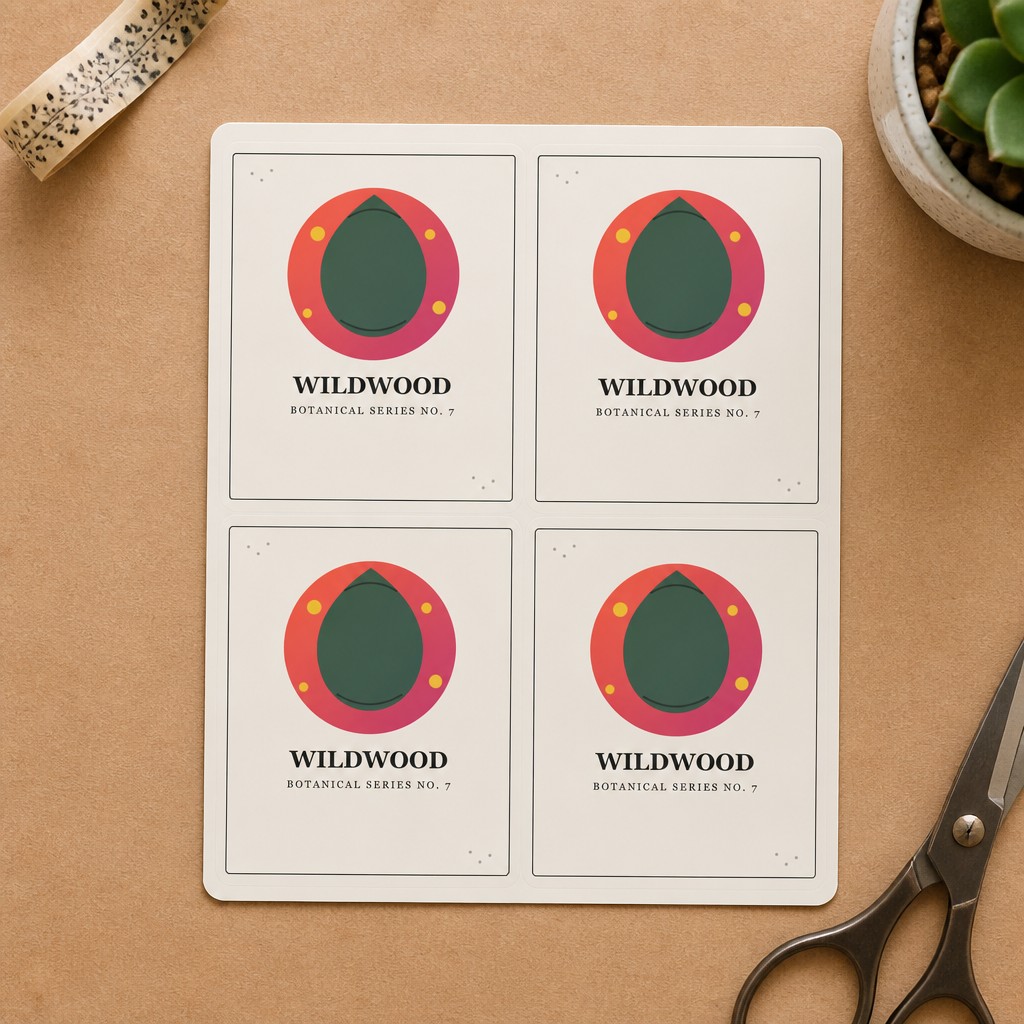
A sticker sheet mockup like this one is generated fresh, not pasted onto a stock photo.
Generate your first sticker mockup free
Upload your design and see it on a laptop, bottle, notebook, or sheet — no printing, no camera, no sign-up required.
Try free — no account needed →2000×2000 · 300 DPI · Ready for Etsy
Frequently asked questions
Do I need a transparent background on my sticker design?
It helps. A transparent PNG gives the AI a clean die-cut edge to work with, which produces the sharpest results on surfaces like laptops and water bottles. A white background usually still works fine — the generator treats a clean white edge as the sticker boundary in most cases.
Can I mockup a design I haven't printed yet?
Yes — that's the entire point. You can generate listing photos before you've ordered a single physical sticker, which means you can test how a design looks as a product photo before committing to a print run.
What file format works best?
PNG or JPG. If your design software (Procreate, Illustrator, Photoshop) can export a transparent PNG, that's the best starting point — but a flattened JPG on a plain background works too.
How is this different from a sticker mockup template pack?
A template pack pastes your flat design onto the same stock photo every buyer of that pack also uses, so the lighting, angle, and surface never change. PosterMock AI generates a new photo around your specific design each time, which means your listing photos don't look identical to competitors using the same template.