6 Free Photoshop Alternatives for Poster Mockups (2026)
Most "Photoshop alternative" roundups actually mean two different things, and mixing them up wastes your time. One is "which mockup template tool should I use instead of building one myself" — that's Canva, PlaceIt, Mediamodifier. The other is "which image editor can open a PSD mockup template and let me place my poster into it, without paying for Photoshop" — that's a completely different category of software, and it's what this article is actually about.
If you already have a PSD mockup template (bought from Creative Market, Etsy, or wherever) and just need something other than Photoshop to open it and drop your poster into the Smart Object layer, here are the six real options — free and paid — and how they actually compare.
Quick comparison
| Tool | Price | Opens PSD templates | Learning curve | Best for |
|---|---|---|---|---|
| GIMP | Free | Yes, with a plugin | Steep | Long-term free workflow |
| Photopea | Free (ads) · ~$9/mo ad-free | Yes, natively | Steep | Anyone who already knows Photoshop's UI |
| Affinity Photo | ~$69.99 one-time | Yes | Steep | Owning software once, no subscription |
| Krita | Free | Limited | Moderate | Illustration, not mockup compositing |
| Canva | Free · $15/mo Pro | No — template-based, not a raster editor | Low | Quick edits, not PSD templates |
| PosterMock AI | Free · $7.99/mo | Not needed — no editor required | None | Getting a finished mockup without learning any of the above |
The 4 real Photoshop alternatives (for opening PSD templates)
GIMP is the most capable completely-free image editor, and it can open PSD files — but Photoshop's proprietary Smart Object format isn't fully supported natively, so most mockup templates need the Smart Object Layers plugin to keep the perspective-warp intact when you drop your poster in. Once set up, it works, but the interface is genuinely unfamiliar even to people who know Photoshop, and there's a real learning curve to placing an image correctly without distorting it.
- Completely free, no account
- Actively maintained, works on Windows/Mac/Linux
- No subscription, ever
- Smart Object support needs a plugin
- Steep learning curve, unfamiliar UI
- Still one mockup at a time, done by hand
Photopea runs entirely in your browser and deliberately mirrors Photoshop's layout — menus, panels, and even most keyboard shortcuts are in the same place. It opens PSD files and Smart Objects natively, which makes it the closest thing to "Photoshop without paying for Photoshop" for someone dropping a poster into a bought template. The tradeoff is that it's genuinely the same skill floor as Photoshop itself — if the reason you don't use Photoshop is the learning curve, not the price, Photopea doesn't fix that.
- Native PSD & Smart Object support
- No install, runs in browser
- Free tier is genuinely usable
- Same skill requirement as Photoshop
- Ads on the free tier
- One template, one poster, one mockup at a time
Affinity Photo is a genuine professional-grade editor with real PSD support, sold as a one-time purchase instead of a subscription — for someone who resents Adobe's monthly pricing specifically, this is the direct answer. It's capable of everything Photoshop is for mockup compositing. But it's still a full desktop image editor with the same underlying complexity: layers, masks, and perspective warping are things you'll need to actually learn, not something the software does for you.
- No subscription — pay once
- Professional-grade PSD support
- Desktop app, works offline
- Upfront cost, not free
- Same learning curve as Photoshop
- No bulk/batch workflow built in
Krita is excellent for painting and illustration and worth knowing about generally, but it's not really built for the mockup use case: PSD Smart Object support is limited, and there's no equivalent to the non-destructive "double-click the layer, paste, save" workflow Photoshop templates rely on. Included here mainly so you don't spend an afternoon trying to make it do something it wasn't designed for.
- Completely free
- Great for digital painting
- Weak Smart Object / PSD template support
- Wrong tool for this specific job
Notice the pattern: every option above still requires you to own a PSD template in the first place, and still requires you to manually place, warp, and export the poster correctly inside it. None of them remove the actual skill requirement — they just remove the Adobe subscription.
Or: skip image-editing software entirely
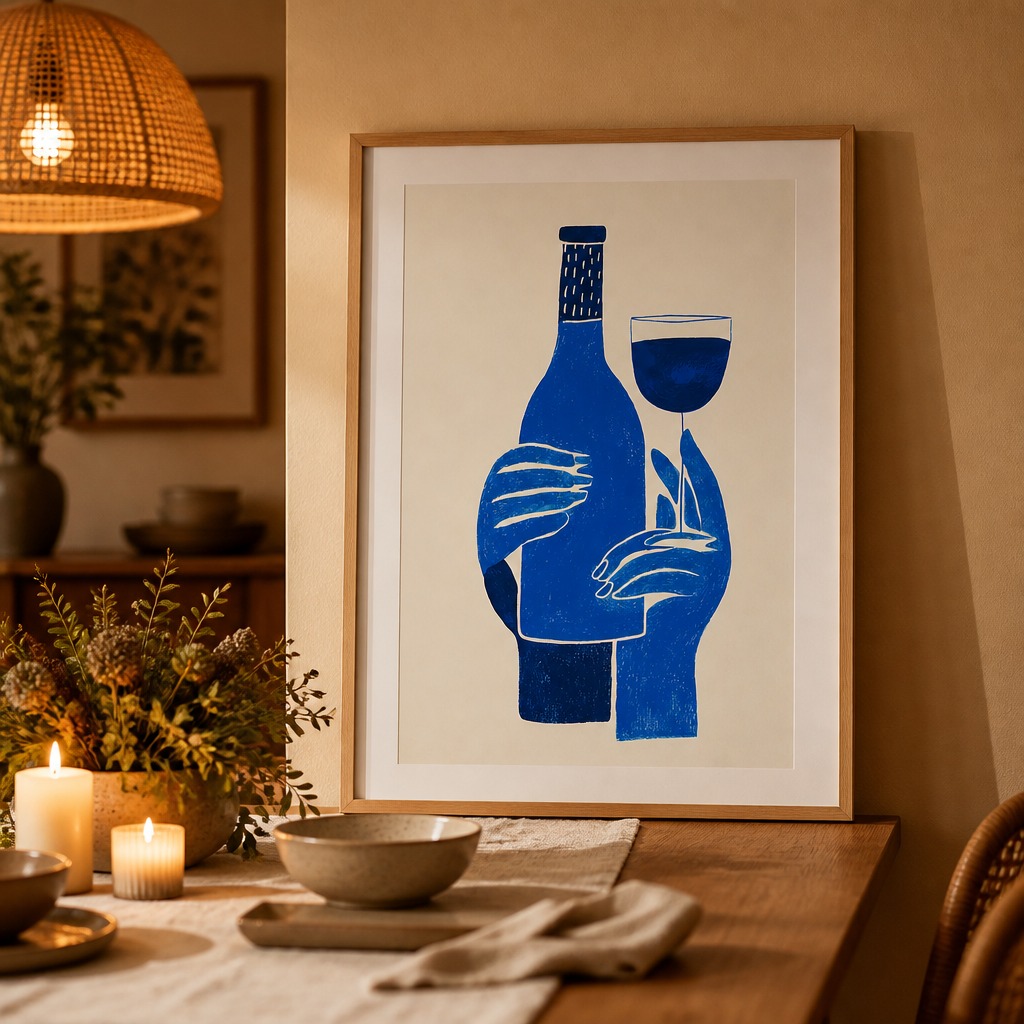
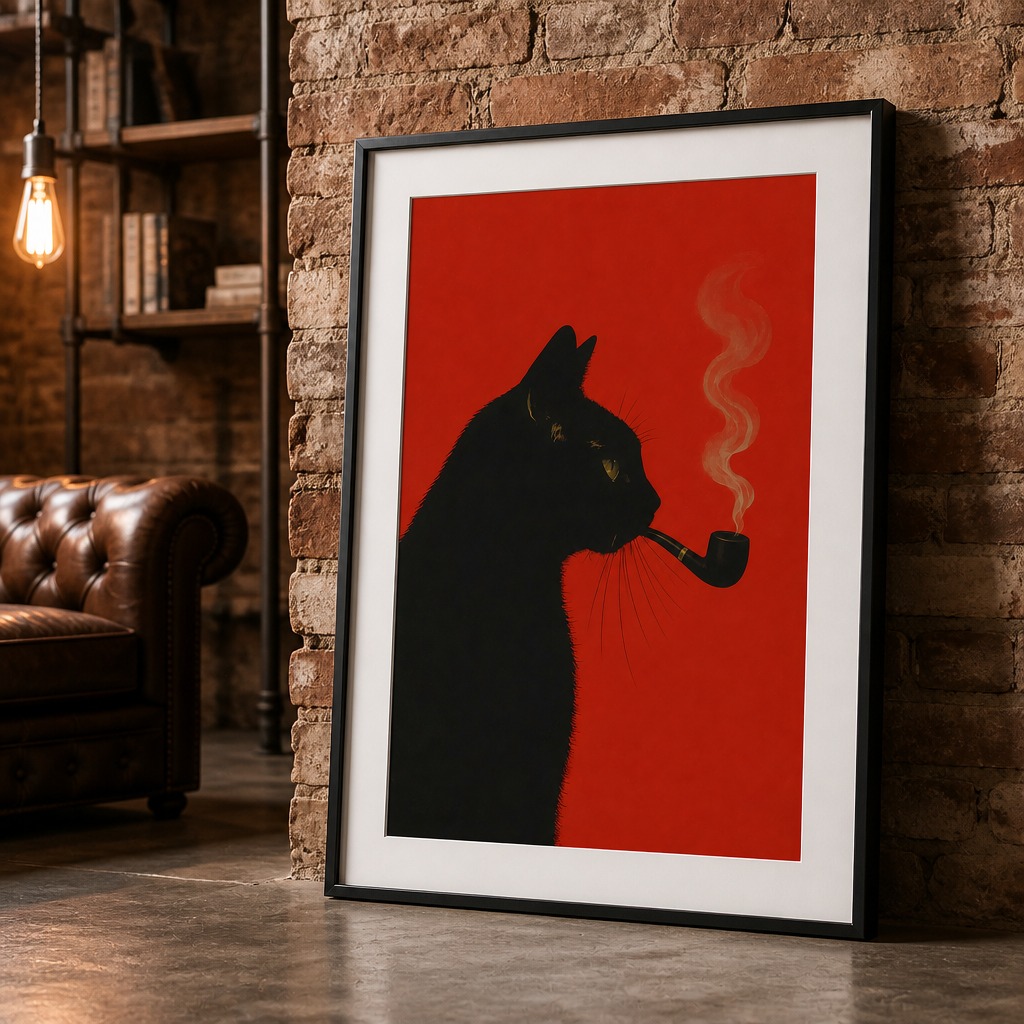
No PSD template, no Smart Object, no editor open at any point.
If what you actually need is a finished mockup — not a new piece of software to learn — none of the four tools above are the fastest path there, free or not. PosterMock AI doesn't open a template at all: upload your poster, pick a room style, and an AI model generates the entire scene around it, frame and perspective included. There's no PSD to source, no Smart Object to find, and no export settings to get right.
Instead of opening an editor and placing your poster into someone else's template, PosterMock AI generates the whole room fresh, with your poster already framed and positioned inside it. Upload a JPEG or PNG, pick from 14 room styles, choose a frame — no template file needed, because there's nothing to composite by hand. Output is 2000×2000px at 300 DPI, ready to use.
- No software, no PSD template needed
- No layers, masks, or Smart Objects to learn
- 20–30 seconds per mockup
- Free to try, no account required
- Wall art / room mockups only
- Less pixel-level manual control than a real editor
Which one is actually right for you
- You want to keep using Photoshop-style templates without paying Adobe — try Photopea first; it's the closest match to what you already know.
- You want free software you'll come back to long-term — GIMP, accepting the learning curve.
- You want to pay once and own real editing software — Affinity Photo.
- You just want the finished mockup and never plan to touch an editor — that's what PosterMock AI is actually built for.
Worth being direct: if you already own Photoshop and a library of templates, none of this applies to you — see our comparison of AI mockups vs. Canva's template library and the note on AutoMockup Desktop below if you want to batch-process a large catalogue through your existing setup instead of switching away from it.
Skip the editor. Get the mockup.
No Photoshop, no GIMP, no template file to find. Upload a poster, pick a room, download the result.
Try free — no account needed →2 free generations daily · No watermark · No install
Frequently asked questions
Do any of these free tools actually replace Photoshop completely?
For opening PSD mockup templates specifically — yes, Photopea and (with a plugin) GIMP both work. For general photo editing they're each missing some Photoshop-specific features, but for the "place a poster into a Smart Object" task this article is about, they're functional replacements.
What if I don't have a PSD template at all?
Then an editor doesn't help you — you'd still need to buy or build a template separately before any of GIMP, Photopea, or Affinity Photo could do anything. That's the case PosterMock AI is built for: no template required, because the AI generates the whole scene.
Is Photopea safe to use for commercial work?
Yes — it's a legitimate, widely used tool with a free tier and a paid ad-free plan. It doesn't affect the commercial licensing of your own artwork; that depends on the license of whatever PSD template you're placing it into.
I have hundreds of designs and a template library — is any of this worth learning?
Probably not by hand, regardless of which editor you pick. At that volume, AutoMockup Desktop automates your own installed Photoshop to batch-place designs into your existing templates, which is a different problem than the one this article covers.